


Home Planner AI: Room Interior
4.03.66K Reviews
App Specs
- Version
- 2639
- Updated On
- License
- Free
- Downloads
- 10,000,000+
- Developer
- Room Planner Ltd
- Categories
- House & Home
- Platform
- Android, iOS
Screenshots

 Analysis by AppCompare
I tend to judge room-planning apps by a simple test: do they help me make a real decision before I move furniture, buy paint, or ask someone else to picture an idea? A polished preview is enjoyable, but it is only useful if I can turn it into a practical plan. That distinction matters with Home Planner AI: Room Interior, because its appeal is as much about exploring possibilities as it is about planning a finished room.
Start with the decision you need to make
Before opening any design tool, I find it helpful to name the problem. Are you choosing between two sofa positions, trying to settle on a color direction, or preparing to explain a renovation idea to a contractor? Those are different jobs. A visual room-planning app can help you think through the first two and communicate the third, but it should not replace careful measuring or professional construction advice.
That makes the app most useful when you already have a room or a specific change in mind. A renter deciding whether a desk will fit beside a window, for example, may get more value from testing a few layouts than from browsing broad inspiration galleries. Likewise, someone refreshing a bedroom can use a digital version of the space to compare a calmer arrangement with a more dramatic one before committing to a purchase.
What the app is good at helping you see
In my experience, the strongest reason to try this kind of tool is that spatial ideas are hard to judge from a shopping photo. A chair that looks compact online may dominate a small room, while a layout that seems awkward in your head can feel balanced once you see it from another angle. The app encourages that kind of low-stakes experimentation: try an arrangement, notice what feels wrong, and revise it before making the room harder to use.
One practical workflow is to start with the room’s main constraint rather than decorating everything at once. If the doorway must stay clear, or the dining table needs to remain usable, make that the anchor of your plan. Then compare furniture positions around it. This prevents a common trap in virtual design: creating an attractive picture that ignores the everyday path people actually take through the room.
I would also treat visual suggestions as prompts, not instructions. A proposed color palette can help narrow a mood, but the same shade can look different under daylight and evening lamps. Before buying paint or fabric, compare real samples in the room at different times. A screen preview is a useful filter for ideas, not a guarantee that materials will look identical at home.
Getting Started: The Setup
First things first, downloading the app was a breeze. You can find it on both Android and iOS, which is super convenient. Once installed, the app welcomes you with a clean and simple interface. It's intuitive, so you won’t find yourself lost in a sea of buttons.
Worth Reading Before You Choose

Flipboard Shows What News Apps Must Do Beyond the Feed

Switching to Android Auto Means Rethinking Your Driving Routine

Google Calendar Makes a Crowded Week Easier to Manage

Ludo King Makes the Most of the Minutes Between Plans

Baby Panda World Brings Quick Play to Modern Phones, but Its Game Library Feels Busy

ESPN’s Live Game View Makes Following Close Games Easier
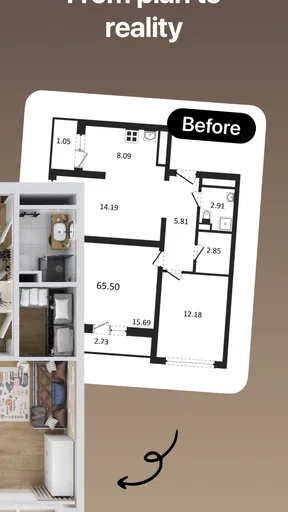
Setting up your first project is straightforward. You just need to snap a few photos of your room, and Home Planner AI: Room Interior does its magic. The app uses AI to analyze your space, giving you a digital canvas to work with. I was impressed by how accurately it mapped my room—it even noticed the quirky angle of my favorite armchair!
Diving into Design
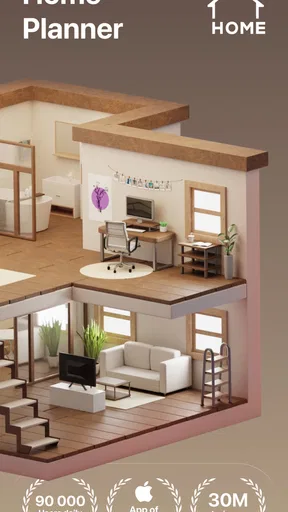
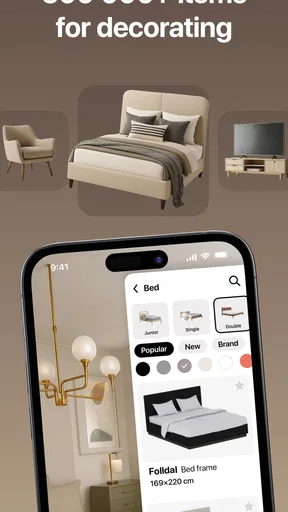
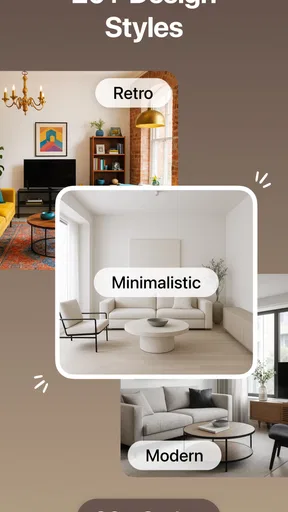
This is where the fun begins. The app offers a plethora of design options. Whether you're going for a minimalistic vibe or a bohemian haven, there are plenty of styles to choose from. The AI suggests furniture arrangements and color palettes, which really helped me visualize potential changes.
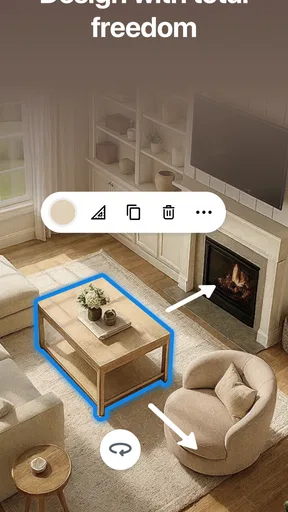
One feature I absolutely love is the ability to drag and drop furniture pieces. You can experiment with different layouts without breaking a sweat. I spent hours rearranging my virtual living space—trust me, it’s addictive.
Make the preview answer a practical question
To keep those rearranging sessions useful, I suggest testing one variable at a time. First settle the large pieces—the sofa, bed, or table—then look at smaller items and decoration. If you change the layout, colors, and style all at once, it becomes difficult to tell which decision improved the room. Saving a few distinct directions to revisit later is more useful than endlessly polishing one version before you know whether its basic arrangement works.
A realistic example: imagine you are planning a Saturday living-room refresh and are unsure whether to keep the sofa where it is or turn it toward another wall. I would use the app to compare those two arrangements, then check the actual walkway, outlets, and window access in person. If one option looks better on screen but blocks the route to the balcony, that is an easy reason to reject it before doing any heavy lifting.
Real-Time Visualization
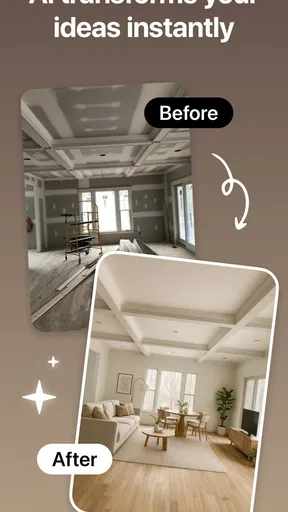
Another standout feature is the real-time visualization. The app uses augmented reality to project your chosen design onto your actual room. It’s wild! You just point your camera, and voilà—your room is transformed. This feature helped me see how a bold red couch would look against my beige walls before committing to any purchases.
Where a different tool may be wiser
Compared with a mood-board app, a room planner is better suited to thinking about how objects relate to the space rather than simply collecting attractive references. Compared with a basic floor-plan drawing tool, a visual design app can make it easier to imagine the finished atmosphere. Those are different strengths, not a reason to expect one app to do every job equally well.
If your priority is exact architectural documentation, measured construction drawings, or a reliable specification for a builder, I would choose a dedicated planning or professional design workflow instead. Likewise, if you only want to save photos and color inspiration, a simpler image-collection tool may involve less setup. The right choice depends on whether you need to explore a room visually or produce precise technical information.
Even a convincing camera preview has practical limits. Perspective, lighting, and the way a phone is held can affect how a design appears, so I would not use an on-screen overlay as proof that a piece will fit. Measure the furniture and the room yourself, including the route through doors and tight corners. That small check can prevent an attractive virtual choice from becoming an awkward delivery-day problem.
A Helping Hand: AI-Powered Suggestions
The app's AI suggestions are surprisingly spot-on. If you’re like me and sometimes find decision-making a challenge, this feature is a lifesaver. It considers your room's dimensions, existing furniture, and even lighting, offering suggestions that make sense.
Plus, the app includes a mood board feature. You can compile your favorite looks and styles, which is perfect for keeping your ideas organized. It’s like Pinterest, but focused entirely on your personal space.
Keep a design useful beyond the screen
When I am narrowing down options, I use a mood board to preserve the reasoning behind a choice, not just the finished look. A note such as “keep the reading corner bright” or “leave room for the dining chairs” can help when I return to a design after a break. It also makes feedback more concrete: instead of asking whether someone likes a room, I can ask whether a particular arrangement solves the problem I care about.
For a shared home, that can make discussions less abstract. Send a version that shows the main layout and ask housemates to react to specific choices, such as the seating position or overall color direction. Their comments are opinions, of course, not a substitute for checking dimensions or agreeing on a budget, but a visual reference can surface disagreements earlier than a vague conversation.
Sharing and Feedback
Once you're happy with your design, sharing it is a cinch. You can easily send your ideas to friends or family, and the app even allows you to get feedback directly within it. I shared my new design with my best friend, and she was able to comment right on each piece of furniture.
Who should try it, and what to expect
I would recommend it to people who enjoy seeing alternatives before making a home decision, especially if they have a room to refresh and need help picturing layout or style changes. It can also suit someone who wants to gather a few options before talking them through with family. The main benefit is having something visual to react to, rather than relying on memory or trying to describe a room with words.
I would skip it if you need dependable technical plans, have no interest in experimenting visually, or expect an AI suggestion to settle every design choice automatically. It is also worth keeping a practical checklist beside the app: verify measurements, preserve access to doors and windows, and consider how the room is used at different times of day. The tool can help form a direction, but your real space has the final say.
For people weighing the cost, the app is free to download, with optional in-app purchases listed from $1.99 to $399.99 per item. I would begin with the free experience and decide whether its workflow genuinely helps before paying for anything. Because optional purchases can vary substantially, check the specific item and its terms in the app before confirming; there is no reason to assume every useful design step requires a purchase.
There is also a small switching cost to consider. If you begin a project here and later move to a different planner, you may need to recreate the room or carry your ideas over manually, so I would keep a few reference photos and notes outside the app. That is especially sensible for a longer renovation. For a quick layout experiment, the commitment is much lighter: test the idea, take away the useful insight, and stop if the tool is not helping.
The Verdict
In conclusion, Home Planner AI: Room Interior is a fantastic tool for anyone looking to refresh their living space. Whether you're a seasoned decorator or just dipping your toes into the world of interior design, this app has something to offer. It’s user-friendly, packed with features, and genuinely fun to use. So, if you’re ready to transform your home without lifting a finger, give this app a try. You might just find yourself spending more time redecorating your virtual room than you ever expected!
There is a practical reason the app has found an audience: it belongs to the House & Home category, is made by Room Planner Ltd, and has an average rating of 4.0 from around 234,000 ratings, with about 3,600 written reviews and over 10 million installs. It is free to start, rated for Everyone, and its current version is 2605, with a minimum operating-system requirement of 10. It originally arrived on December 17, 2016, so this is an established home-design app rather than a brand-new experiment.
My clear recommendation is to try it when you have a specific room decision to make, and judge it by whether it helps you choose a workable direction. Keep measurements and real-world constraints in charge, use the visual tools to compare options, and avoid treating attractive renders as construction plans. For that kind of thoughtful, low-risk design exploration, it can be a genuinely enjoyable companion; for precise technical work, a specialist tool or human professional is the better fit.
Pros
- User-friendly interface for easy navigation.
- AI generates realistic room designs quickly.
- Wide variety of furniture and decor options.
- Supports both 2D and 3D visualization.
- Offline mode available for uninterrupted planning.
Cons
- Limited free features; premium needed for full access.
- Occasional AI inaccuracies in measurements.
- Requires significant storage space on device.
- No direct export to CAD software.
- Advertisements can be intrusive at times.
FAQs for Home Planner AI: Room Interior
What is Home Planner AI: Room Interior and how does it work?
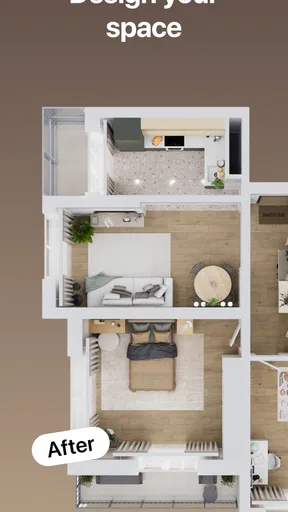
Home Planner AI: Room Interior is a cutting-edge app that uses AI technology to help you design and visualize interior spaces. By inputting room dimensions and selecting styles, the app generates 3D models and offers furniture suggestions. It’s perfect for anyone looking to redesign their home with ease and precision.
Can I use Home Planner AI: Room Interior on both Android and iOS devices?
Yes, Home Planner AI: Room Interior is available for both Android and iOS platforms. You can download it from the Google Play Store or Apple App Store. Ensure your device meets the minimum system requirements for optimal performance and a smooth user experience.
Does Home Planner AI: Room Interior require an internet connection to function?
While some basic features of Home Planner AI: Room Interior can be used offline, an internet connection is necessary to access the full range of functionalities. This includes downloading new design templates, accessing the latest furniture catalogs, and utilizing cloud storage for your projects.
Is there a cost associated with using Home Planner AI: Room Interior?
Home Planner AI: Room Interior offers both a free version and a premium subscription. The free version provides access to basic features, while the premium version includes advanced design tools, exclusive templates, and an ad-free experience. Check the app for the latest pricing details.
How user-friendly is Home Planner AI: Room Interior for beginners?
Home Planner AI: Room Interior is designed with an intuitive interface, making it accessible for beginners. It offers tutorials and guides to help users navigate through the design process. The AI-driven suggestions simplify decision-making, allowing even those with no prior design experience to create stunning interiors.


